.png?width=918&height=120&name=Applicant%20Knowledge%20Base%20(918%20x%20120%20px).png)
What device are you using?
-
Laptop or desktop: follow the instructions to share your screen according to your device's operative system (OS).
-
Tablet or smartphone: please close out of the test and launch your exam using a laptop or a desktop.
Are you using Windows?
To share your screen, please follow the instructions below:
1. Click on the "Start Screenshare" button
2. Click on the "Entire Screen" tab and then click on the screen that you want to share so that it comes up blue.
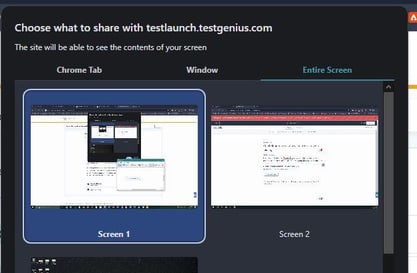
3. Click on the "Share" button.

This will share your screen with the Proctoring tool and will allow you to continue with the setup process.
Are you using macOS (Apple)?
- Open System Preferences
- Click the Security and Privacy icon
- Select Screen Recording in the sidebar
- Click the box next to Google Chrome
- If prompted, click the Unlock icon in the bottom-left
- Click "Quit Now"
- Close out of Google Chrome and use your original test link to return to your exam.
This should allow you to change the settings within your MacBook so that you can share your screen while taking your exam.